When Google Blocks Your Apps: A Developer's Guide to Android's Growing Walls
Google Play Protect keeps blocking apps from outside the Play Store. Is it a security feature or a walled garden? This guide explains the technical reality and gives developers practical workarounds for distributing apps safely in Kenya.

Nicholus Munene
blogger
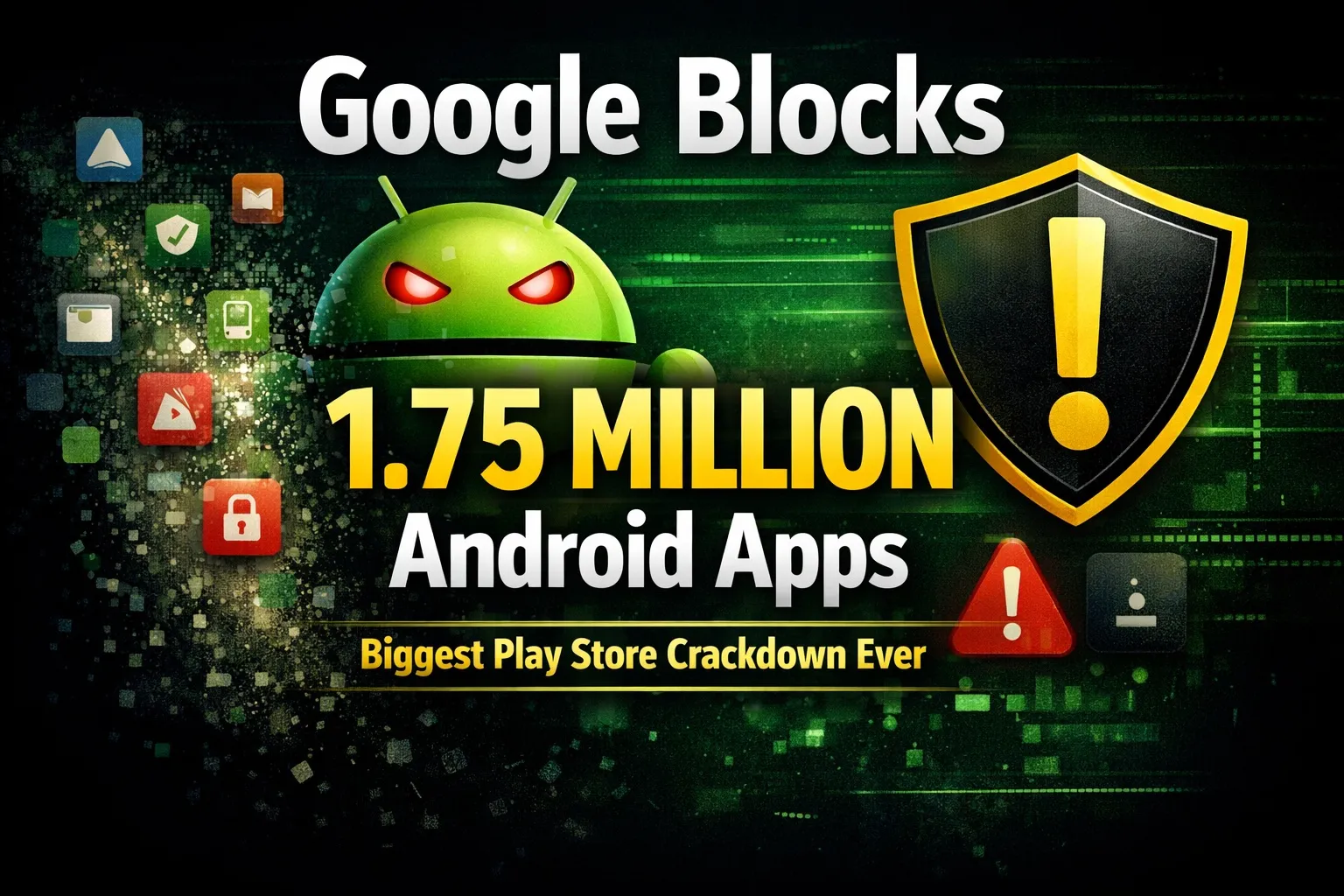
When Google Blocks the Side Door: Understanding Android's Growing Walls Around Alternative App Stores
You're building or deploying an app. Maybe it's an internal tool for a client. Maybe it's an open-source project you maintain. Or perhaps you're simply trying to install a legitimate utility like NewPipe or Termux on your own device.
Then Google Play Protect steps in. Red screen. Warning text. A greyed-out "Install anyway" button.
As a developer, you know this isn't malware. But your client—or your less technical team member—sees the warning and panics.
So what's actually happening under the hood? And how do you work around it without compromising security or user trust?
Let's break down the technical reality of Google's "block" on alternative Android app sources—and what it means for developers building for the Kenyan market.
---
The Architecture of Android's "Block"
First, let's separate Google's role from Android's role. They are not the same thing.
Component: Google Play Protect
Who controls it: Google (via Play Services)
What it does: Scans APKs for known malware signatures and policy violations
Component: Package Installer
Who controls it: AOSP + manufacturer
What it does: Handles actual installation; enforces API restrictions
Component: Restricted Settings
Who controls it: AOSP (Android 13+)
What it does: Blocks sensitive permissions for apps targeting old API levels
Component: Auto Blocker / MIUI Security
Who controls it: Manufacturer (Samsung, Xiaomi)
What it does: Adds extra installation hurdles beyond Google's
When users say "Google blocked my app," they're usually experiencing a combination of two or three of the above.
---
Why F-Droid Apps Specifically Trigger Warnings
F-Droid is a popular alternative store for free and open-source software. It's also a frequent victim of Play Protect warnings. Here's why:
1. Signing keys mismatch - F-Droid signs all apps with its own keys, not the developer's original keys. If a user previously installed an app from Google Play, the F-Droid version will have a different signature. Android blocks this as a "downgrade" or "signature conflict."
2. Target API level lag - Many F-Droid apps are maintained by volunteers who may not immediately update to the latest Android API level. Android 14+, for example, requires targetSdkVersion >= 33. Older targets trigger Play Protect warnings and Restricted Settings blocks.
3. No Play Services integration - Apps that don't use Google Play Services are automatically less "trusted" by Play Protect's heuristics. This is not a bug—it's a design choice by Google.
4. Source reputation scoring - Play Protect maintains a reputation score for each APK signing certificate. F-Droid's certificate is less common than Google's own or large commercial developers, so it starts with lower trust.
---
The Developer's Workaround Guide
For users installing your app from outside Play Store:
Provide clear, step-by-step instructions like this:
1. When you see the red "Blocked by Play Protect" screen:
- Tap "More details"
- Tap "Install anyway (unsafe)"
- If greyed out, proceed to step 2
2. For Samsung devices with Auto Blocker:
- Settings → Security and privacy → Auto Blocker → Turn OFF temporarily
3. For Xiaomi devices:
- Settings → Additional settings → Developer options → Turn OFF "MIUI Optimization"
4. After installation:
- Re-enable Auto Blocker / MIUI Optimization
- Keep Play Protect ON for ongoing security
For developers distributing via F-Droid:
- Update your target API level to at least 33 (Android 13) or 34 (Android 14). This removes the "Restricted Settings" block.
- Sign your own builds and submit them to F-Droid as "official" builds instead of letting F-Droid re-sign.
- Provide a direct APK download on your own website alongside the F-Droid link. Some users prefer the path of least resistance.
For enterprise/internal apps:
Use Managed Google Play or Android Enterprise to whitelist your app across your organization's devices. This bypasses Play Protect warnings entirely for enrolled devices.
---
The Legal Reality: Can Google Block Entire Stores?
Developers often ask: Could Google ever fully block F-Droid or similar stores?
Technically, yes—Google could add domain-level blocking or certificate blacklisting. But legally and practically, it's unlikely.
- Antitrust pressure: The EU's Digital Markets Act already forces Google to allow alternative app stores. A full block would invite massive fines.
- Developer backlash: Blocking F-Droid would alienate the open-source community that contributes heavily to Android's ecosystem.
- Sideloading remains core to Android: Unlike iOS, Android's promise has always been freedom. Removing sideloading would destroy that identity.
What will continue, however, is friction. More warnings. More hidden buttons. More steps. Google's strategy is not to block—it's to annoy casual users into staying inside the Play Store.
---
What This Means for You as a Developer in Kenya
If you're building apps for Kenyan users, understand this:
- Most users do not understand Play Protect warnings. They will simply give up and complain that "the app doesn't work."
- If your app is not on Google Play, you must provide clear, local-language (Swahili/English) instructions for installation.
- Consider using Obtainium or open-source app updaters for tech-savvy users who want to avoid Play Store entirely.
For enterprise clients, always recommend Managed Google Play or a private app store solution to avoid support headaches.
---
Quick References
If you see this: Red screen: "Blocked by Play Protect"
Do this: Tap "More details" → "Install anyway"
If you see this: "Install anyway" is greyed out
Do this: Disable Samsung Auto Blocker or Xiaomi MIUI Optimization temporarily
If you see this: App installs but can't enable permissions
Do this: Go to App Info → Permissions → Toggle "Restricted settings" ON
If you see this: App crashes on Android 14+
Do this: Contact the developer to update target API to 33+
---
Conclusion: It's Not a Wall—It's a Speed Bump
Google's "block" on F-Droid and other alternative sources is real in its effects, but it's not an absolute barrier. With proper API targeting, clear user education, and the right distribution strategy, you can deliver apps to your users without compromising security or trust.
The key takeaway: Don't fight Google's system—understand it, then design around it.
Have you encountered Play Protect blocks while distributing your own apps? Share your experience in the comments—or reach out to our team at Emore Systems for help with secure Android app deployment strategies.
Build smart. Distribute smarter.
— Emore Systems Dev Team
Related Articles
Hidden Chats and How to Uncover Them: The Ultimate WhatsApp...
WhatsApp has evolved far beyond a simple messaging app into a powerful communica...
Emore Business: The All-in-One Platform Transforming Small B...
In today’s fast-paced digital economy, small and medium-sized businesses in Keny...
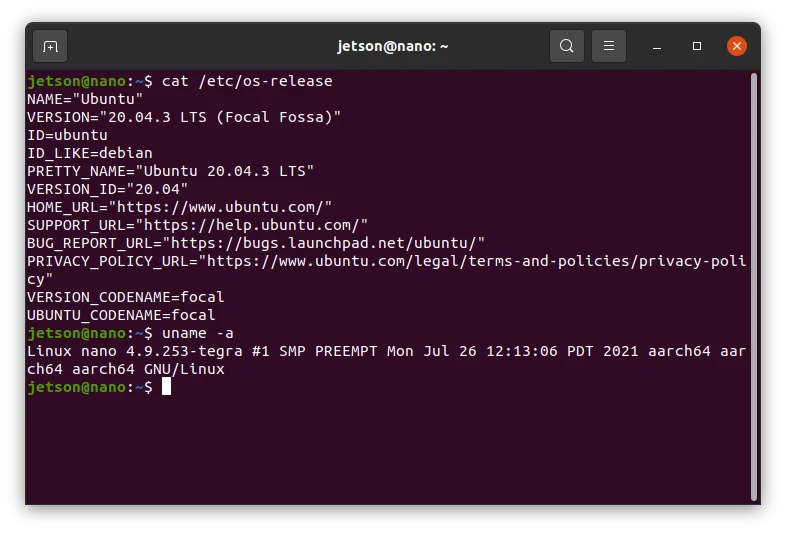
Nano on Ubuntu: The Beginner's Guide to Terminal Text Editin...
Whether it's tweaking a system configuration, writing a quick script, or updatin...